Get started with Bear

These Welcome Notes will help you get to know Bear. Feel free to reference these while working in your own notes. The other Welcome Notes in this series include:
- [[Organize, search, and customize in Bear]]
- [[Work faster and easier with Bear]]
How to create a new note
Click the New Note button (⌘+N) at the top of the Note List and start typing. The first line of every note is its title, the rest is up to you.
Meet the Styles
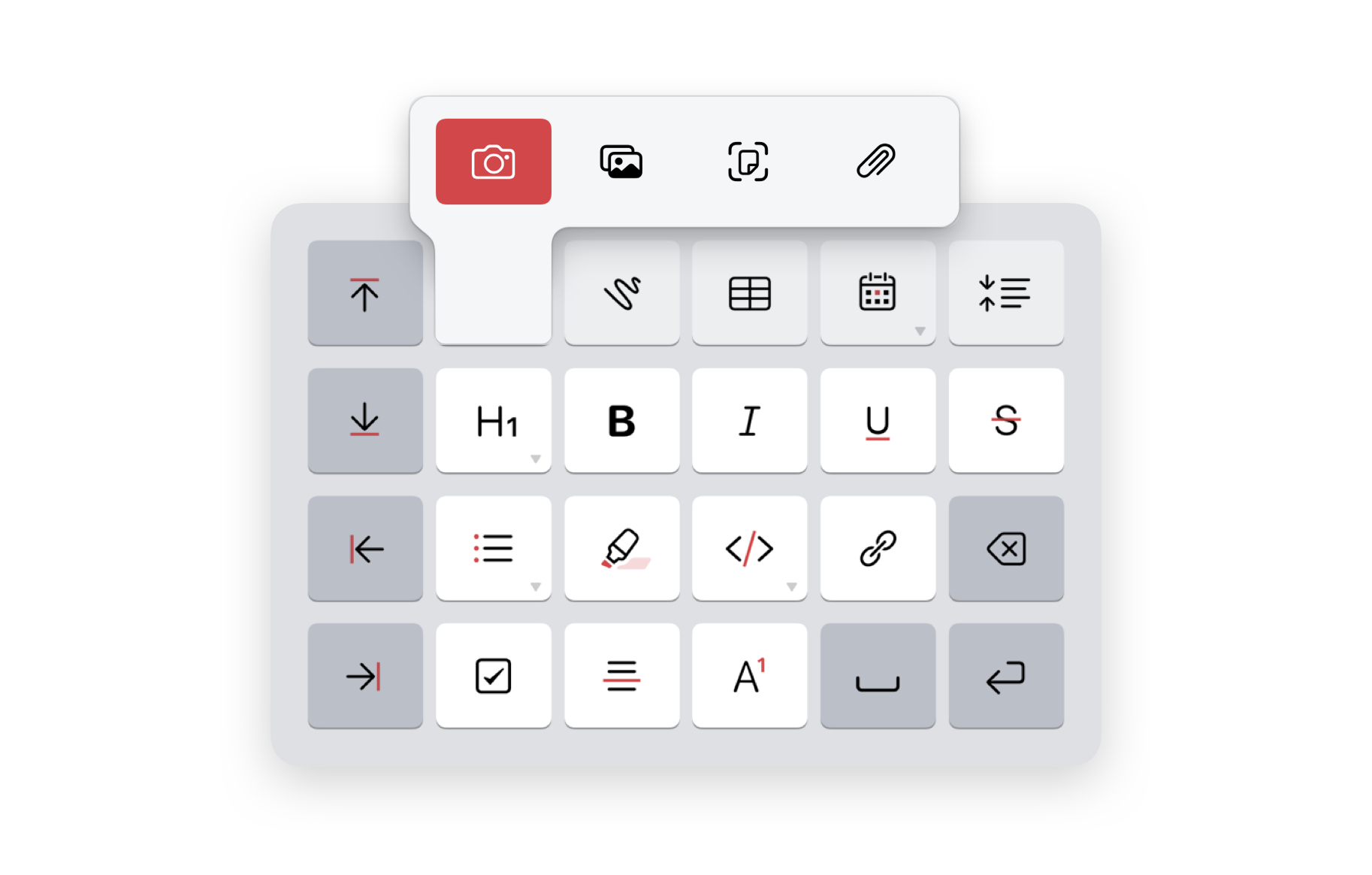
Bear's custom keyboard is the control board styling your notes on iPhone and iPad. On macOS, the same functionalities are available in the style bar at the bottom of the editor. Both can be enabled via the BIU button.
📝 Write with styles
You can add all kinds of text styles to your notes, including: bold, italic, underline, strikethrough, ==highlight==, headings, links, lists, todos, tables, and more—and it all starts with the Style Bar.
Use the BIU button (⇧+⌘+Y) at the top of Bear to reveal the Style Bar and many of the core tools available to you. You can combine styles together, like bold and underline on the same word. To apply all this formatting, Bear uses Markdown[^1], a simple way to add style to plain text by wrapping it with special characters. Visit our support docs to learn more about using Markdown in Bear and how you can apply this formatting yourself.
📷 More than text
Bear notes can hold just about any kind of file, from photos to PDFs to… we’ll spare you the full list. You can drag & drop any file in your notes or use the attachment function (it looks like a photo) on the Style Bar. You can trigger with BIU button on iOS and iPadOS.
🎨 Draw your ideas
When it’s time to get visual, you can add sketches to your notes on iPad. To create a sketch anywhere in a note, tap the BIU button, then the Squiggly Line Sketch Button (yes that is its technical name). An expandable canvas will appear with Apple’s PencilKit tools, just add your creativity.
Know your note
Is your note close to a word count for a work or school project? How long will it take to read? Press ⓘ to reveal the Info Panel with these and other live statistics about your note.
Use the Table of Contents tab in the Info Panel to see a layout of your note, based on headings 1-6. Click the Backlinks tab to view a list of all notes that link to the current note.
Ready to write your first note?
Your training is complete. Well, at least enough to get started with your own notes. To learn about more features, including: a powerful way to organize your notes with tags and the Sidebar, how to sync everything across all your devices with Bear Pro, and some advanced tips, check out the rest of our Welcome Notes below:
- [[Organize, search, and customize in Bear]]
- [[Work faster and easier with Bear]]
Footnotes
[^1]: To be specific, Bear uses CommonMark, a well-defined and highly compatible specification of Markdown.
#bear/welcome #publish